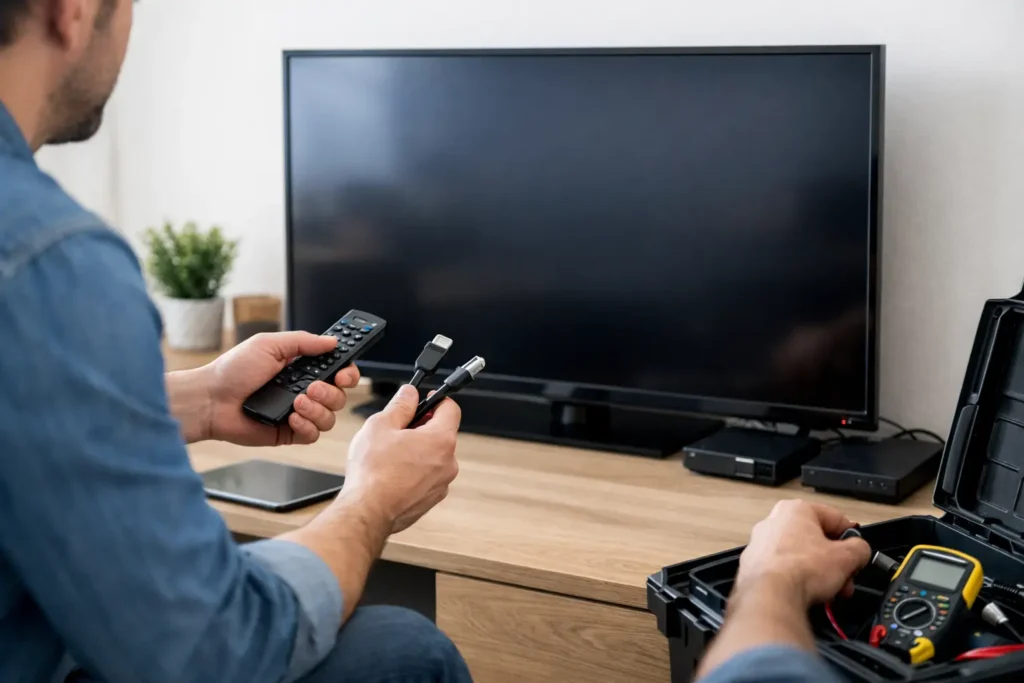
A TV can look perfectly healthy one moment and suddenly display a blank screen with a frustrating “No Signal” message the next. The good news is that fixing a no signal TV issue is often straightforward when you check the system in the right order. The key is knowing whether the problem is the TV itself, the selected input, a loose HDMI connection, the cable or satellite box, an antenna, or your home network.
Before unplugging everything or changing TV settings at random, take a moment to identify what you were watching when the message appeared. A no-signal warning while using a cable box calls for a different approach than one that appears when opening a streaming app or watching local antenna channels.
Start With the TV Input
The most common cause is simply that the TV is set to the wrong input. Modern TVs may have HDMI ports for a cable box, Apple TV, Roku, game console, Blu-ray player, AV receiver, or soundbar. If someone presses the Input or Source button on the remote, the TV can switch to an unused port and immediately show “No Signal.”
Use the TV remote to open the Input or Source menu, then select the input connected to the device you want to use. If your cable box is plugged into HDMI 1, for example, choose HDMI 1. If the picture returns, the TV was never the problem.
This is also a good time to make sure family members know which input they normally use. Labeling inputs with names such as Cable, Apple TV, or Game Room can make a system much easier to operate, especially in homes with several connected devices.
Check Whether the Source Device Is On
A selected HDMI input can still show no signal when the connected device is powered off, frozen, or stuck in standby mode. Look at the cable box, streaming device, receiver, or gaming console. Confirm that it has power and that its status light is on.
If it appears to be on but the screen remains blank, restart the source device first. Unplug it from power for about 30 seconds, reconnect it, and allow it to boot completely. Cable boxes and streaming devices can take several minutes to reconnect and load their programming.
Avoid restarting the TV repeatedly before checking the source. The television is often doing exactly what it should: it is reporting that no usable video signal is coming through the selected connection.
Inspect HDMI Cables and Connections
HDMI cables carry both picture and sound, but they can work loose over time. This is especially common behind wall-mounted TVs, inside media cabinets, and in setups where equipment has recently been moved for cleaning, remodeling, or furniture changes.
Turn off the TV and connected device, then firmly reseat the HDMI cable at both ends. Check that it is fully inserted into the TV and the source device. If your system includes an AV receiver, HDMI switch, soundbar, or wall plate, inspect those connection points too. Every added component creates another possible point of failure.
A cable may look fine while still being damaged internally. Try a different HDMI cable if you have one available, preferably a certified high-speed cable appropriate for your equipment. You can also move the existing cable to another open HDMI port on the TV. If the picture comes back on a different port, the original port or its connection may need further attention.
When HDMI Handshake Problems Are the Real Cause
Some no-signal issues happen because devices fail to complete what installers call an HDMI handshake. The TV, receiver, and source device exchange information about video resolution, audio formats, and copy protection. If that communication fails, you may get a black screen or no-signal message even though every device is powered on.
A proper power reset can help. Turn off the TV and all connected components. Unplug them for 30 seconds, reconnect the HDMI path, then power the system back on in order: TV first, receiver or soundbar second if applicable, and source device last. This gives each component time to identify the next device in the chain.
Handshake trouble is more likely with 4K TVs, Dolby Atmos systems, long HDMI cable runs, in-wall cables, and older receivers. In those cases, replacing a short visible cable may not solve the issue if the weak point is an older receiver, a failing HDMI extender, or a cable concealed in the wall.
If You Use Cable, Satellite, or an Antenna
For cable or satellite service, check whether the provider’s box displays a status message or error code. Make sure the coaxial cable is snug at the wall outlet and at the back of the box. Severe weather, an area outage, or a provider-side account issue can also interrupt service, so it is worth checking whether other TVs in the home are affected.
With an over-the-air antenna, “No Signal” may mean the TV is on the wrong source. Select Antenna, TV, or Live TV rather than an HDMI input. If channels are missing after a power outage or television reset, run a channel scan from the TV’s settings menu.
Antenna reception also depends on placement, signal strength, splitters, and local obstructions. A channel that works reliably in one room may not reach another room well through an aging splitter or poorly installed coaxial line.
A Streaming Problem Is Usually Not a TV Signal Problem
When Netflix, YouTube TV, Hulu, or another app will not play, the screen may be black, but the cause is often your network rather than the TV input. First, see whether the TV menu appears and whether other apps load. If they do, the display itself is likely working properly.
Restart the streaming device or smart TV app, then check your Wi-Fi connection. A weak signal is common in larger homes, homes with concrete or plaster walls, and properties where the router is tucked inside a cabinet. Rebooting the modem and router can restore service temporarily, but recurring problems usually point to Wi-Fi coverage, network congestion, or equipment placement.
For a reliable media room, hardwired Ethernet is often preferable when it is practical. A properly designed Wi-Fi upgrade can also make streaming, smart-home controls, security cameras, and outdoor entertainment systems far more dependable.
Watch for Signs of a Larger AV System Issue
A simple direct connection from a cable box to a TV is easy to test. More involved systems require a more methodical approach. If your TV routes through a receiver, surround-sound processor, HDMI matrix, video distribution system, or universal remote, a small setting change can affect the entire viewing experience.
Common warning signs include a picture that returns only after several restarts, one source that works while another does not, sound with no picture, intermittent dropouts, or a TV that works directly connected but fails through the receiver. These symptoms can indicate an HDMI compatibility issue, a failing cable, incorrect resolution settings, or a component that is beginning to fail.
Do not factory-reset every component as a first response. A reset can erase carefully programmed inputs, network settings, remote commands, custom audio calibration, and smart-home integrations. It may solve a software problem, but it can also create unnecessary setup work.
When Professional Troubleshooting Makes Sense
Call for help when the issue involves in-wall wiring, a mounted TV, a receiver-based surround system, hidden equipment, repeated HDMI failures, or unreliable Wi-Fi. These are situations where guessing can lead to damaged ports, unnecessary replacement purchases, or a system that works only part of the time.
A hands-on AV technician can test the signal path from source to display, isolate the failed component, verify video settings, and make sure the repair supports the way you actually use the room. For homeowners in Newport Beach and throughout Orange County, Tri Star Home Theater can also address the underlying installation details, from cable concealment and upgraded HDMI connections to receiver configuration and Wi-Fi improvements.
A no-signal message is rarely a reason to panic, but it is a useful clue. Start with the selected input and source device, work through each connection in order, and stop when the problem points beyond a simple cable check. That approach saves time and helps protect the investment you have made in your home entertainment system.
Ready for a free consultation? Let’s get in touch! Call (949) 878-0531 Today