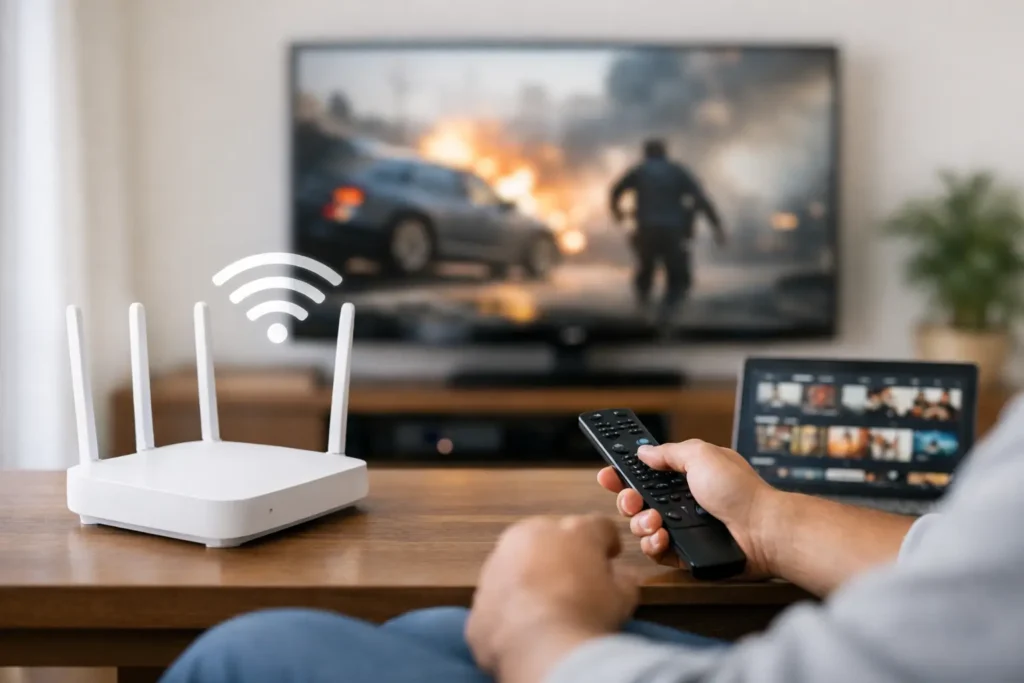
A movie that drops to blurry resolution just as the big scene starts is rarely a streaming-service problem. More often, the issue is the connection between your router, your TV or streaming device, and every other device competing for bandwidth. Knowing how to optimize wifi for streaming helps turn a frustrating setup into one that can handle family movie nights, live sports, gaming, and smart-home traffic without constant buffering.
For many Orange County homes, the challenge is not simply buying faster internet. Larger floor plans, dense walls, detached spaces, outdoor TVs, and multiple connected devices can expose weak points that a basic router cannot cover. The right solution depends on where the problem occurs and how the home is used.
Start With the Difference Between Internet Speed and WiFi Coverage
Your internet plan determines how much data enters the home. Your WiFi network determines how reliably that data reaches the television, projector, Apple TV, Roku, game console, or other device that needs it. You can have a fast plan and still experience buffering if the wireless signal is weak, crowded, or poorly placed.
As a general guideline, a single 4K stream may need around 25 Mbps of reliable download speed. That number is not the whole story. A household streaming two 4K programs while video calling, gaming online, and running security cameras needs more capacity and better network management than a home with one TV and a few phones.
Before replacing equipment, run a speed test near the router and another at the streaming device. If speed is strong near the router but poor at the TV, you have a coverage or interference problem. If speed is weak everywhere, the issue may involve the internet service, modem, router, or a network configuration that needs attention.
How to Optimize WiFi for Streaming Room by Room
The router’s location has an outsized effect on performance. A router hidden in a cabinet, placed on the floor, or installed at one end of a large home starts at a disadvantage. Wireless signals weaken as they travel through walls, stone surfaces, metal, mirrors, appliances, and built-in cabinetry.
Place the main router in a central, open, elevated location whenever possible. It should not be tucked behind a TV, inside a media cabinet, or next to a microwave. In a professionally designed AV system, this can require a little planning: the cleanest visual location for equipment is not always the best location for wireless coverage.
For a theater room or media room, test the connection where people actually watch. The TV may appear close to the router on a floor plan but still sit behind several walls or a fireplace structure. If only one room has problems, a properly placed access point, mesh node, or wired connection may solve the issue without replacing the entire network.
Choose the Right Frequency Band
Most current routers offer 2.4 GHz and 5 GHz WiFi bands, while newer WiFi 6E and WiFi 7 equipment may also use 6 GHz. Each has a purpose.
The 2.4 GHz band travels farther and penetrates obstacles better, but it is slower and more susceptible to congestion from neighboring networks and household devices. The 5 GHz band usually offers better speed for streaming when the device is reasonably close to the router or access point. The 6 GHz band can provide excellent performance for compatible newer devices, though its shorter range makes access-point placement even more important.
Automatic band steering works well in many homes, but not every home. If a streaming device repeatedly connects to a weak 2.4 GHz signal when a strong 5 GHz signal is available, separating network names or adjusting settings can improve reliability. This is one area where a network professional can diagnose the actual behavior instead of guessing from a router app.
Use Ethernet Where Reliability Matters Most
Wireless convenience is valuable, but a wired Ethernet connection remains the most dependable choice for a fixed entertainment device. If your TV, streaming box, projector, gaming console, or AV receiver stays in one place, connecting it by Ethernet avoids interference and frees up wireless capacity for mobile devices.
This is particularly useful for home theaters, outdoor entertainment areas, and rooms at the far end of the house. A properly installed low-voltage cable can be concealed in walls and connected to the network equipment without compromising the appearance of the space.
Not every device needs a wire. Phones, tablets, smart speakers, and laptops are designed for WiFi. But wiring the highest-demand devices can make the whole network feel better, especially during busy evenings. It also makes troubleshooting easier because you immediately know whether a problem is related to WiFi or the internet connection itself.
Upgrade Coverage Instead of Adding Random Extenders
A basic range extender is tempting because it is inexpensive and easy to plug in. It can help in a small dead zone, but it often creates a second weak connection that cuts available performance. For reliable 4K streaming, an extender is not always the best long-term answer.
A mesh WiFi system can be a better fit for homes that need broad coverage across several rooms or floors. Mesh units work together under one network name and can move devices between nodes more smoothly than older extender setups. However, mesh systems work best when their nodes have a strong connection to one another. Placing a node in the middle of a dead zone does not fix the underlying problem.
For larger homes, homes with challenging construction, or properties with a separate office, guest area, or outdoor living space, wired access points are often the stronger solution. They use Ethernet cabling to bring a full network connection closer to each coverage area, rather than repeating an already weakened signal.
Reduce Traffic That Competes With Streaming
Streaming problems often show up at predictable times: when the kids get home, during a live game, or when someone starts a large cloud backup. Your network may be carrying more than you realize, including cameras, doorbells, smart TVs, tablets, phones, computers, printers, and automated backups.
Start by checking for large downloads, game updates, cloud syncing, and security-camera uploads during the times you stream most. Some routers offer quality-of-service settings that let you prioritize video calls, gaming, or streaming traffic. These settings can help, although they cannot create bandwidth that your internet plan does not provide.
It is also wise to keep router firmware current and restart equipment occasionally when it begins behaving inconsistently. A restart is not a permanent repair, but it can clear a temporary issue. If it becomes a weekly ritual, the network needs a closer look.
Make Sure Your Streaming Equipment Is Not the Weak Link
An older smart TV may have limited WiFi hardware, slow software, or an Ethernet port that does not support higher speeds. In some cases, adding a current streaming device provides a noticeable improvement without replacing a perfectly good display.
The same applies to AV receivers and network switches. A legacy device can limit performance or introduce compatibility issues that are difficult to spot. For systems with Dolby Atmos, multiple source components, distributed audio, or smart-home controls, the network should be planned as part of the installation rather than treated as an afterthought.
If you are watching content through a projector, verify that the streaming source is placed where it has a reliable connection. A hidden equipment rack in a closet or cabinet may be excellent for appearance and cable management, but it may need a wired network connection or dedicated access point to support dependable streaming.
Signs It Is Time for a Professional WiFi Evaluation
A quick reboot can resolve an occasional hiccup. Repeated buffering, rooms that never receive reliable coverage, devices that fall offline, and a network that slows down whenever several people are home usually point to a design issue.
A hands-on evaluation looks beyond advertised router speed. It considers the home layout, wall materials, internet service, device count, equipment location, wired-network options, and the way your family uses the system. The goal is not to fill the house with unnecessary gear. It is to build a network that supports the spaces you use most, from the main theater to the patio TV and home office.
Tri Star Home Theater helps homeowners create clean, dependable entertainment and WiFi setups that fit the way their homes are actually used. A well-planned connection should fade into the background, leaving you free to enjoy the show instead of watching a loading circle.
Ready for a free consultation? Let’s get in touch! Call (949) 878-0531 Today